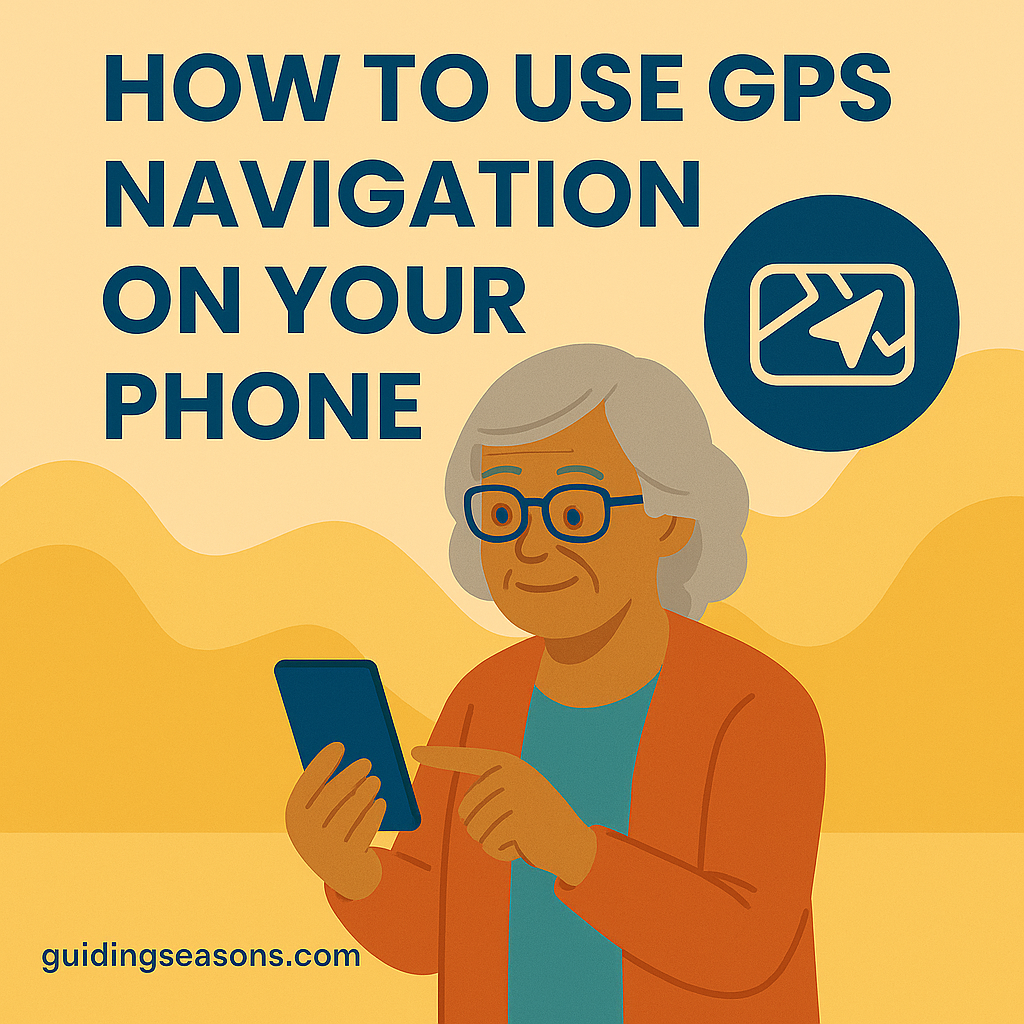
GPS navigation has made getting around easier than ever—no printed maps, less guessing, and no need to remember every turn. For seniors, learning how to use GPS on a smartphone can bring confidence, independence, and peace of mind whether you’re driving, walking, or taking public transportation.
The best part? You don’t have to be a tech expert. With just a few taps, your phone can guide you to your destination. This guide walks you through the basics, step by step.
What GPS Navigation Can Help You With
GPS apps are helpful for much more than driving.
Your phone can guide you:
- When driving to appointments
- While walking or exercising
- On buses or trains
- To new restaurants or stores
- While traveling in unfamiliar areas
- When avoiding traffic delays
GPS apps can provide turn-by-turn directions and usually recalculate your route if you miss a turn.
Choose a GPS App That’s Easy to Use
Two of the most widely used options are Google Maps and Apple Maps.
1. Google Maps (iPhone & Android)
- Free to use
- Offers driving, walking, biking, and transit routes
- Provides voice-guided directions
- Includes information about many businesses and destinations
- Can display traffic conditions in supported areas
2. Apple Maps (iPhone)
- Built into iPhones
- Simple, clean design
- Offers turn-by-turn navigation
- Works with Siri voice commands
- Provides driving, walking, cycling, and transit options where available
Both can work well. Choose whichever feels more comfortable and familiar to you.
Step-by-Step: How to Enter a Destination
Here’s how to get directions using Google Maps. Apple Maps follows a similar process, although buttons and menu options may look slightly different.
1. Open the Google Maps app
Tap the Google Maps icon on your home screen.
2. Tap the search bar
You’ll see a cursor ready for you to type.
3. Type your destination
Examples:
- “123 Main Street”
- “Costco”
- “Dr. Smith’s Office”
- “Local Library”
Whenever possible, enter the complete address for important destinations such as medical offices. Several businesses or offices can have similar names.
4. Select the correct location from the list
Before continuing, check the name, street address, and city to make sure you’ve selected the correct destination.
5. Tap “Directions”
One or more route options should appear on the map.
Choose Your Travel Type
Depending on your location and the app you’re using, you’ll see icons for different ways of traveling, such as:
🚗 Driving
🚶 Walking
🚌 Public Transit
🚲 Biking
Other transportation options may also appear in certain locations.
Tap the option that matches how you plan to travel.
Before starting, take a moment to check the estimated travel time and destination. For example, if a familiar doctor’s office is normally 15 minutes away but the app shows a two-hour trip, double-check that you’ve selected the correct office and city.
That quick check can prevent you from accidentally navigating to a similarly named destination far away.
Start Navigation
Once the destination and route look correct:
Tap “Start.”
Your phone will begin turn-by-turn navigation.
You may hear directions such as:
“In 500 feet, turn right.”
or:
“Continue straight for 1 mile.”
If you miss a turn, don’t panic. Navigation apps will generally calculate another route to your destination.
Avoid making sudden or unsafe turns just because you missed an instruction. Continue driving safely and allow the app to update the route.
Adjust the Volume So You Can Hear Directions
One advantage of voice navigation is that you don’t need to constantly look at your phone.
To adjust the volume:
- Use the volume buttons on the side of your phone
- Look for audio or speaker controls in the navigation app
- Check the app’s navigation or guidance settings if the voice is difficult to hear
If your phone is connected to your vehicle through Bluetooth or another system, navigation instructions may play through the vehicle’s speakers.
Set the volume before driving whenever possible.
Use Voice Commands for Easier Navigation
Voice assistants can make it easier to start navigation without typing.
On iPhone (Siri)
You might say:
“Siri, give me directions to the nearest pharmacy.”
On Android
Depending on your device and settings, you may be able to use Google’s voice features to say something such as:
“Navigate to the post office.”
Voice controls can reduce the need to touch your phone, but they aren’t perfect. Always confirm that the app selected the destination you intended.
For more information about making smartphones easier to use, AARP’s smartphone guides and technology resources offer additional help with common phone features and settings.
Save Important Places for Faster Access
Save locations you use frequently so they’re easier to find later.
Examples:
- Home
- Favorite grocery store
- Doctor’s office
- Church or community center
- Family members’ homes
Google Maps and Apple Maps both provide ways to save or mark frequently used locations.
Be thoughtful about how much personal information you save, particularly if other people regularly use your phone. Protect your device with a passcode, fingerprint, or facial recognition when available.
See Traffic and Delays
Navigation apps can provide information about conditions such as:
- Heavy traffic
- Construction
- Accidents
- Road closures
Depending on available data and your settings, the app may suggest a different route to help you avoid a delay.
Keep in mind that traffic information isn’t always complete or perfectly current. Road signs, emergency personnel, construction crews, and local traffic rules always take priority over instructions from your phone.
Use Street View to Preview Destinations
If you’re unsure what a destination looks like, Google Maps may offer Street View imagery.
Depending on your device and app version, you may be able to select a location and open its Street View or photo preview.
You can then look around the area to become familiar with:
- Building entrances
- Nearby businesses
- Intersections
- Parking areas
- Landmarks
This can be particularly useful before visiting an unfamiliar doctor’s office, restaurant, hotel, or other destination.
Keep in mind that Street View images may not always show the most recent appearance of an area.
Tips for Safer Navigation
GPS is helpful, but your attention should remain on the road.
When driving:
- Enter your destination before you start moving
- Check that you’ve selected the correct location
- Use voice guidance when possible
- Secure your phone appropriately rather than holding it
- Don’t type or search while driving
- Follow road signs and traffic laws
- Pull over safely if you need to make significant changes to your route
If you’re unfamiliar with using a smartphone in the car, practice setting up the route while the vehicle is parked.
The AARP Driver Safety program also provides resources for older drivers, including information about safe driving habits and adapting to changes in vehicles and technology.
What to Do If You Get Lost
Don’t panic if you miss a turn or become unsure of your location.
You can:
- Allow the app to recalculate the route
- Use the re-center button to bring your current location back onto the screen
- Pull over somewhere safe and review the directions
- Restart navigation if necessary
- Ask a passenger for assistance
Never make an unsafe U-turn, sudden lane change, or other maneuver simply because the navigation app tells you to turn.
Getting to your destination a few minutes later is better than making a risky move.
Try Navigation While Walking First
If you’re nervous about using GPS while driving, start small.
Practice by navigating:
- Around your block
- To a neighbor’s house
- To a nearby park
- Through a familiar neighborhood
Try a simple 5-minute walking route that you already know. This lets you practice following the map, listening to voice instructions, and watching the location marker move without also having to concentrate on driving.
Once you’re comfortable with the basic controls, try using navigation on a familiar driving route.
Final Thoughts
Using GPS on your phone can make traveling easier and less stressful. With turn-by-turn directions, voice guidance, traffic information, and automatic route recalculation, your smartphone can be a useful tool for everyday errands as well as unfamiliar trips.
Start by practicing somewhere you already know. Learn how to enter a destination, check the address, start navigation, and listen to the instructions. As those steps become familiar, using GPS in new places should become easier too.
Most importantly, remember that GPS is a tool—not a replacement for your own judgment. Pay attention to road signs and your surroundings, and never follow an instruction that appears unsafe or doesn’t make sense.
With a little practice, your phone can become a helpful travel companion wherever you go.