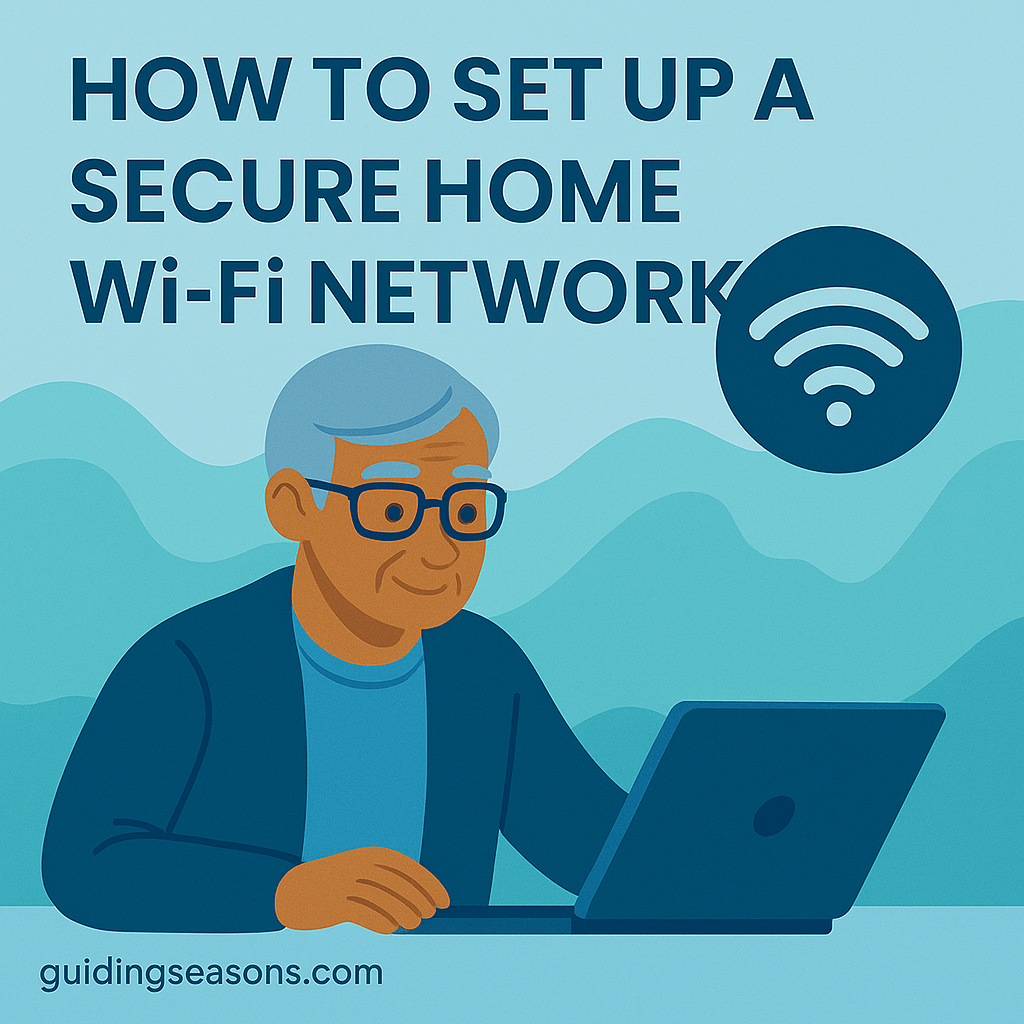
A reliable Wi-Fi network keeps you connected to family, friends, entertainment, and important online services. But your home network also needs to be secure so your personal information stays protected. Fortunately, creating a secure Wi-Fi setup doesn’t have to be complicated—you just need to follow a few basic steps.
This guide walks you through everything you need to set up a home Wi-Fi network that is safe, dependable, and ready for everyday use.
Understand the Equipment You Need
A secure Wi-Fi connection begins with the right equipment.
You’ll need:
- A modem – connects your home to the internet
- A router – creates the wireless network
- A combination modem/router (optional) – a single device that does both
If you rent equipment from your internet provider, ask whether it supports current security features such as WPA3 encryption and automatic firmware updates.
Place Your Router in a Safe, Central Spot
Router placement affects both security and performance.
Good placement options:
- A raised shelf or table
- A central spot in your home
- Away from windows and doors
- Away from microwaves, large appliances, and other sources of interference
A central location can also help provide a stronger, more consistent connection throughout your home.
Create a Strong Wi-Fi Password
Your password is one of the first lines of defense in keeping your network safe.
A strong password:
- Has at least 12 characters
- Uses a long, difficult-to-guess combination of words, letters, numbers, or symbols
- Avoids personal information such as birthdays or names
- Does NOT use common passwords like “password” or “123456”
For example, a password such as River!Lamp27Garden# is much harder to guess than john1234.
Write your password down and keep it somewhere secure if you’re worried about forgetting it.
Rename Your Wi-Fi Network
Most routers come with a default network name, also called an SSID. Changing it can help protect your privacy and make your network easier to recognize.
Tips:
- Avoid using your full name or address
- Choose something unique but not personal
- Example: “CozyPineNetwork24”
The goal is to make your network recognizable to you without revealing unnecessary personal information.
Update Your Router’s Firmware
Router manufacturers periodically release software updates, called firmware updates, that can fix security problems and improve performance.
To check for updates:
- Log in to your router’s settings
- Look for Firmware Update, Router Update, or Software Update
- Install available updates
- Enable automatic updates if your router supports them
If this feels confusing, your internet provider or router manufacturer may be able to walk you through the process.
Turn On WPA3 or WPA2 Encryption
Encryption helps protect information traveling between your devices and your router.
Choose:
- WPA3 if your router and devices support it
- WPA2 if WPA3 is unavailable
Avoid older security standards such as WEP, which no longer provide adequate protection.
Disable Remote Access and WPS
Some routers allow you to change settings while you’re away from home. Unless you specifically need this feature, keeping remote administration turned off can reduce unnecessary access to your router.
You may also want to disable WPS (Wi-Fi Protected Setup) if you don’t use it. Instead, connect devices using your regular Wi-Fi password.
Create a Guest Network for Visitors
If friends or family visit often, a guest network lets them use your internet connection without giving them access to your primary Wi-Fi network.
Benefits of guest networks:
- Keeps visitors separate from your primary network
- Helps protect computers and other connected devices
- Lets you use a different password for guests
- Can usually be turned off when it isn’t needed
Enable Automatic Device Updates
Your phone, tablet, computer, smart TV, and other connected devices also need regular updates to stay secure.
Turn on:
- Automatic operating system updates
- Automatic app updates
- Security patch notifications
Keeping devices updated helps fix known security vulnerabilities and can also improve reliability.
Keep Your Router Physically Secure
Place your router somewhere where visitors or strangers cannot easily tamper with it.
A good location is:
- Indoors and away from easily accessible windows
- Somewhere with good airflow
- Accessible to you when you need to restart or inspect it
- Out of reach of young children or pets
Avoid hiding your router inside a tightly enclosed cabinet, since poor ventilation can cause overheating and weaken the Wi-Fi signal.
Use a Strong Administrator Password
Your router may have two different passwords:
- Wi-Fi password – used when connecting phones, computers, TVs, and other devices
- Administrator password – used to change the router’s settings
Change the router’s default administrator password if you haven’t already, and make sure it is different from your Wi-Fi password.
Restart Your Router When Needed
If your internet connection becomes slow or unreliable, restarting your router can sometimes solve temporary connection problems.
To restart it:
- Unplug the router from power
- Wait about 10–30 seconds
- Plug it back in
- Allow a few minutes for the connection to return
Restarting can help with performance problems, but it should not replace firmware updates or other security measures.
Make Sure the Router’s Firewall Is Enabled
Most modern routers include a built-in firewall designed to help block unwanted incoming network traffic.
In your router settings, look for:
- Firewall
- Network protection
- Security
- Advanced security
For most home users, the router’s built-in firewall should remain enabled.
Be Careful on Other Wi-Fi Networks
Securing your home Wi-Fi is important, but remember that public Wi-Fi networks may not provide the same protection.
Avoid entering sensitive financial or personal information when connected to an unsecured public network unless you have taken appropriate security precautions.
The National Council on Aging offers additional cybersecurity guidance, including advice about protecting personal information and staying safer when using public or unsecured networks.
When to Ask for Help
It’s okay if some router settings feel confusing—different manufacturers use different menus and terminology.
Ask for help from:
- A trusted family member or friend
- Your internet provider
- Your router manufacturer
- A reputable local tech support service
- Community technology classes for older adults
You can also ask your internet provider to help you confirm that WPA2 or WPA3 encryption, automatic updates, and the router firewall are enabled.
Final Thoughts
A secure Wi-Fi network helps protect your personal information while keeping you connected to the people and services that matter.
Start with the basics: use strong and unique passwords, keep your router and devices updated, use WPA3 or WPA2 encryption, and create a separate guest network when needed.
You don’t need to be a tech expert. Once these basic protections are in place, most of the work happens quietly in the background while you use your internet as usual.