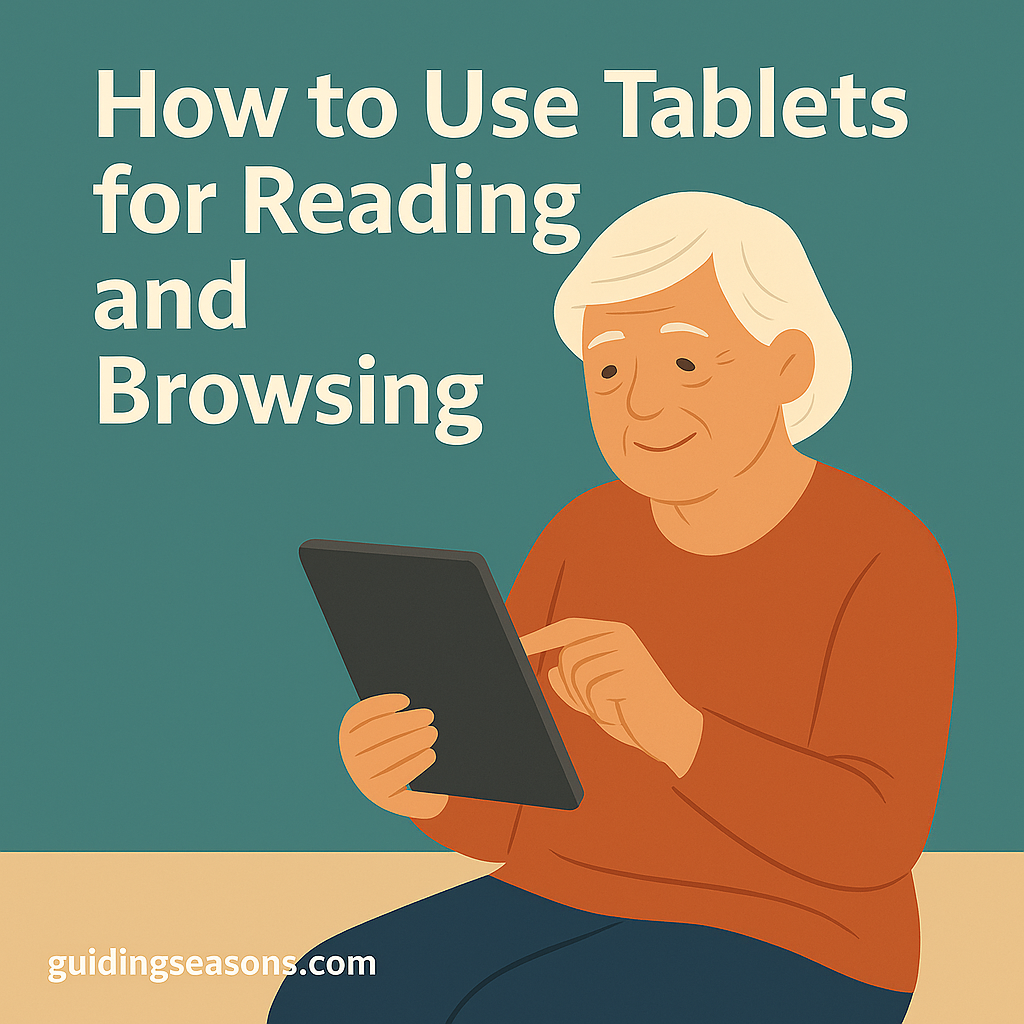
Tablets can be one of the easiest ways to enjoy technology at home. They are larger than smartphones, lighter than most laptops, and simple to control with taps, swipes, and on-screen buttons.
For older adults, a tablet can be especially useful because the screen is large enough for comfortable reading while still being easy to carry from room to room. You can use one to read books, browse the internet, watch videos, check email, look at family photos, join video calls, or follow a recipe in the kitchen.
You also do not need to learn everything at once.
A good approach is to start with just a few basic tasks, such as opening a book, visiting a favorite website, and adjusting the text size. Once those actions feel familiar, you can gradually explore more features.
Here is a practical, senior-friendly guide to using tablets confidently for reading, browsing, and everyday activities.
1. Choose a Tablet That Matches How You Plan to Use It
There are many tablets available, but you do not necessarily need the newest or most expensive model.
Think first about what you want to do.
If your main goal is reading books and browsing websites, a basic tablet may be enough. If you also want to edit photos, use demanding apps, or replace a laptop, you may want something more powerful.
Common options include:
- Apple iPad – popular for its straightforward interface, large app selection, and accessibility features
- Samsung Galaxy Tab – a popular Android option with plenty of customization
- Amazon Fire Tablet – often more affordable and suitable for basic reading, entertainment, and web browsing
Screen size matters too.
A smaller tablet may be easier to hold, but a larger tablet can make text, photos, and websites easier to see.
For example, someone who mainly reads novels in a chair may prefer a lighter tablet. Someone who reads news websites, recipes, and magazines may appreciate a larger screen where more content is visible at once.
If possible, hold a tablet in person before buying one. Pay attention to its weight as well as screen size. A beautiful display is not especially useful if the device becomes uncomfortable to hold after 15 minutes.
2. Learn the Basic Touch Gestures
Most tablets use a small number of touch gestures again and again.
Learning these first can make almost everything else easier.
Tap: Touch the screen once to open an app, link, or button.
Swipe: Move one finger across the screen to scroll through a webpage, turn a page, or move between screens.
Pinch: Place two fingers on the screen and bring them closer together to make some content smaller.
Spread: Place two fingers together and move them apart to zoom in.
Press and hold: Keep your finger on an item briefly to reveal additional options.
You do not need to press hard. Modern touchscreens usually respond to a light touch.
Spend a few minutes experimenting with a webpage or photo. Try scrolling slowly, zooming in, and zooming back out.
Practice helps these movements become automatic.
3. Make the Screen Comfortable Before You Start Reading
One of the biggest advantages of a tablet is that you can change how information appears.
If the default text is too small, increase it.
Depending on your tablet, you may be able to adjust:
- Text size
- Bold text
- Screen brightness
- Contrast
- Color settings
- Zoom
- Dark mode
- Reading or night modes
Apple, for example, includes accessibility options on iPad that can enlarge text, zoom portions of the screen, read content aloud, and adjust display settings. These tools are available through the iPad’s Accessibility settings.
Do not assume the factory settings are the “correct” settings.
If increasing the text size two or three levels makes reading more comfortable, use the larger size.
A tablet should adapt to you rather than requiring you to adapt to the tablet.
4. Set Brightness for the Room You Are In
Screen brightness can affect reading comfort.
A very bright screen in a dark bedroom may feel harsh. A dim screen near a sunny window may be difficult to see.
Use the brightness control to find a comfortable level.
Many tablets can also automatically adjust brightness based on surrounding light.
Some people prefer dark mode in the evening, where light text appears on a darker background. Others find traditional black text on a light background easier to read.
Experiment with both.
There is no single display setting that is best for everyone.
5. Use Reading Apps for Books and Magazines
A tablet can hold an enormous collection of reading material without filling a bookshelf.
Popular reading apps include:
- Kindle
- Apple Books
- Libby
- Nook
- News and magazine apps
Most ebook apps allow you to change the font size, typeface, background color, line spacing, and brightness.
This is one of the biggest advantages ebooks have over printed books. If the print seems too small, you can simply make it larger.
Suppose you normally struggle with a paperback containing small print. On a tablet, you might increase the font until only about 150 to 200 words appear on each screen. You may turn pages more frequently, but the reading experience can be much more comfortable.
6. Borrow Ebooks and Audiobooks From Your Local Library
Before buying every book you want to read, check whether your local public library offers digital borrowing.
Many libraries work with Libby, an app from OverDrive that lets participating library users search for ebooks, audiobooks, and magazines.
According to Libby’s official help documentation, users can add a participating library using its name, city, or ZIP code and then connect a library card. The app’s Shelf area lets users manage loans and holds.
This can provide access to a large amount of reading material without purchasing every title individually.
Availability depends on your local library, and popular books may have waiting lists just as physical library books do.
Once you’re comfortable using the app, you can search by title, author, or subject and filter results by formats such as books, audiobooks, or magazines.
7. Try Audiobooks When Your Eyes Need a Break
Reading does not always have to mean staring at a screen.
Audiobooks can be enjoyable while relaxing, cooking, doing crafts, or sitting outside.
Many library and book apps provide audiobook playback.
You can usually:
- Pause and resume
- Skip forward or backward
- Adjust playback speed
- Add bookmarks
- Continue where you stopped
If reading text for a long time becomes tiring, try alternating between ebooks and audiobooks.
For example, you might read an ebook for 20 minutes in the morning and listen to the audiobook version later in the day.
8. Learn How to Browse the Internet
Every tablet includes or supports a web browser.
Common examples include:
- Safari on iPad
- Chrome on Android
- Samsung Internet on Samsung devices
- Silk on Amazon Fire tablets
Tap the browser icon and you’ll usually see an address or search bar.
You can type a website address directly or type a question.
For example:
“easy vegetable soup recipe”
“weather San Diego tomorrow”
“how to care for an orchid”
“museum hours near me”
Then tap one of the search results to open it.
To move down a webpage, swipe upward with your finger.
To return to the previous page, use the browser’s back button or gesture.
9. Use Tabs Carefully
Modern browsers allow several webpages to remain open at once in separate tabs.
Tabs can be useful, but too many can become confusing.
You might open one tab for a recipe, another for weather, and another for email.
That’s manageable.
But if 40 or 50 tabs remain open for months, finding anything can become difficult.
Every so often, close webpages you no longer need.
A simple rule is to keep open only pages you expect to use again soon.
10. Use Voice Search When Typing Is Difficult
Typing on a glass screen can be frustrating, especially when searching for longer phrases.
Voice search can make things easier.
Look for a microphone symbol in your browser or search app.
Tap it and speak naturally.
You might say:
“How do I grow tomatoes in containers?”
or:
“What’s the weather tomorrow?”
or:
“Easy chicken soup recipe.”
The tablet converts your speech into a search.
Voice input can also be useful for writing email or text messages.
If the device misunderstands you, speak a little more slowly and try again.
11. Bookmark Websites You Visit Frequently
You shouldn’t have to search for the same website every day.
Browsers let you save favorite pages as bookmarks or favorites.
Useful bookmarks might include:
- Local newspaper
- Weather site
- Library
- Favorite recipes
- Hobby websites
- Community center
- Travel sites
Suppose you visit six websites regularly.
Save all six as bookmarks and you can reach them with a few taps instead of searching for each one individually.
You may also be able to add a website shortcut directly to your tablet’s home screen, making it behave almost like an app.
12. Be Careful With Health Information Online
Tablets make it extremely easy to research symptoms, medications, diets, and medical conditions.
That convenience is useful, but health information online varies greatly in quality.
Prefer reliable sources such as:
- Government health agencies
- Major hospitals and medical centers
- Established medical organizations
- Your health provider’s official portal
Be cautious with websites making dramatic claims such as “miracle cures” or promising that one product can treat many unrelated illnesses.
Online information can help you prepare questions for a healthcare professional, but it should not automatically replace individualized medical advice.
13. Learn to Recognize Misleading Advertisements
Some websites contain advertisements designed to resemble warning messages.
You might see messages such as:
“Your tablet has a virus!”
“Your storage is full!”
“Click here immediately!”
Do not assume these messages are coming from your tablet.
Often, they are simply advertisements appearing inside a webpage.
If you’re uncertain, close the browser tab rather than tapping the warning.
Real system updates should normally be handled through your tablet’s official settings.
14. Keep Your Tablet Updated
Software updates are important for security, reliability, and compatibility.
Your tablet may automatically download updates and ask you when you want to install them.
Whenever possible, enable automatic software updates, which can help ensure security updates are installed promptly.
Also update the apps you regularly use.
If you receive a suspicious message claiming you need an update, don’t follow a random link. Open your tablet’s Settings or official app store and check there instead.
15. Protect Your Tablet With a Passcode
A tablet can contain personal information such as email, photos, contacts, shopping accounts, and saved passwords.
Protect the device with:
- A passcode
- Fingerprint recognition
- Face recognition
Choose a passcode that isn’t extremely obvious, such as “1234.”
If your tablet supports biometric unlocking, fingerprint or face recognition can make everyday access easier while still protecting the device.
16. Be Cautious With Public Wi-Fi
You may take your tablet to coffee shops, airports, hotels, libraries, or community centers.
Public Wi-Fi can be convenient, but CISA recommends taking precautions when using public wireless networks, including confirming the legitimate network and being careful with sensitive information.
Avoid entering especially sensitive information on unfamiliar networks whenever you have doubts about the connection.
Also make sure you join the correct Wi-Fi network. A fake network can be given a name that looks similar to a legitimate one.
When possible, ask an employee for the official network name.
17. Use Your Tablet for Video Calls
A tablet’s larger screen can make video conversations more comfortable than using a phone.
Popular services may include FaceTime, Google Meet, Zoom, WhatsApp, or other video-calling apps.
Set the tablet on a stand so you don’t have to hold it during a long conversation.
A simple stand can make a 30-minute video call much more comfortable.
Position the tablet near eye level and make sure light is in front of you rather than directly behind you.
18. Use a Tablet Stand for Reading
Holding a tablet for a long time can become tiring.
A stand can support the device while you:
- Read
- Watch a movie
- Follow a recipe
- Join a video call
- Read the news
You can place the stand on a table, desk, kitchen counter, or bedside table.
If you read frequently, this inexpensive accessory can make a significant difference in comfort.
19. Explore Accessibility Features Beyond Larger Text
Accessibility settings can do much more than enlarge fonts.
Depending on the device, you may be able to:
- Have text read aloud
- Magnify part of the screen
- Control the tablet with your voice
- Reduce motion effects
- Increase contrast
- Adjust touch sensitivity
- Use captions
- Modify audio settings
On the iPad, for example, Apple provides VoiceOver for spoken screen navigation, Zoom for magnifying parts of the display, Display & Text Size controls, and other vision and interaction features.
Explore these options even if you do not consider yourself to have an accessibility need.
They’re simply tools designed to make the device easier to use.
20. Keep the Home Screen Simple
Just as with a smartphone, a tablet becomes easier to use when the main screen isn’t overloaded.
Keep the apps you use most often where they’re easy to find.
For example:
First screen
- Browser
- Photos
- Books
- Library app
- Video calling
- Weather
Less frequently used apps can go on another screen or inside folders.
You might create folders such as:
- Reading
- Entertainment
- Shopping
- Travel
- Utilities
Organization does not need to be complicated. The purpose is simply to know where things are.
21. Create a Simple Daily Practice Routine
If you’re new to tablets, consistent short practice works better than trying to learn everything in one afternoon.
Consider a 15-minute daily routine.
Spend five minutes reading.
Spend five minutes browsing a website.
Spend five minutes practicing one skill, such as adding a bookmark or changing the text size.
After one week, that’s 105 minutes of practice without any individual session feeling overwhelming.
You could also choose one new skill each week.
Week 1: Reading and changing font size
Week 2: Browsing and searching
Week 3: Bookmarks and favorites
Week 4: Video calls
Week 5: Library ebooks
Within a little over a month, you may be comfortable with most of the tablet functions you use regularly.
22. Don’t Worry About Knowing Everything
One of the most important things to remember is that nobody uses every feature on their tablet.
You don’t need to.
If your tablet helps you read books, talk to family, browse interesting websites, and watch videos, it’s already doing its job.
You can ignore features you don’t need.
When you encounter something unfamiliar, experiment carefully or ask someone you trust to show you how it works.
Ask them to explain the steps rather than simply taking the tablet and doing it for you. Repeating the process yourself will make it much easier to remember later.
Final Thoughts
Tablets can provide a comfortable middle ground between smartphones and computers.
Their larger screens make reading and web browsing easier, while their lightweight design allows you to use them almost anywhere in the house.
Start with the basics.
Adjust the text and screen until they are comfortable. Learn how to tap, swipe, and zoom. Download one reading app. Save a few favorite websites. Experiment with voice search. If your library supports digital lending, explore ebooks and audiobooks through its available services.
Most importantly, learn at your own pace.
You don’t need to master dozens of apps or memorize every setting. A tablet becomes useful when it helps you do the things you already enjoy more easily.
Whether that’s reading a mystery novel, researching a hobby, watching a family video, finding tonight’s dinner recipe, or borrowing a free audiobook from the library, a tablet can put a remarkable amount of information and entertainment within easy reach.