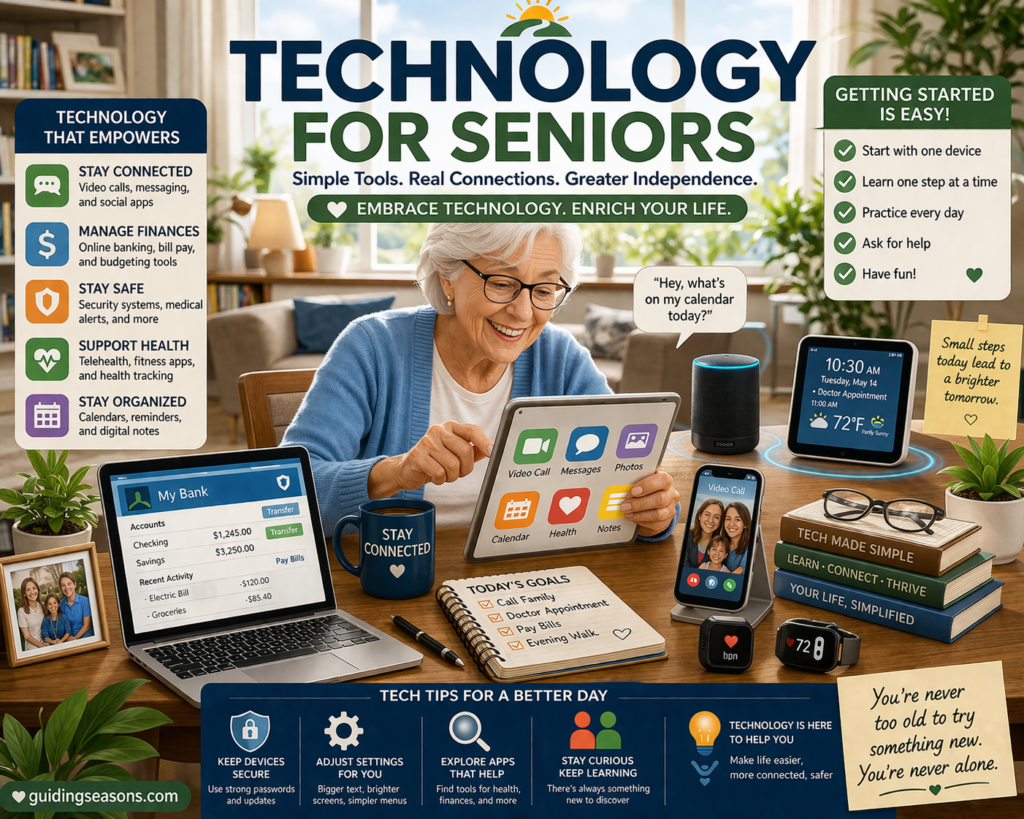
Technology has become part of almost every area of daily life.
We use it to communicate with family, manage money, make appointments, get directions, watch entertainment, shop, access healthcare, and keep our homes secure.
For older adults, learning to use a few essential technologies can make everyday tasks easier while supporting independence.
But technology can also feel overwhelming. New devices appear constantly, apps change their layouts, passwords are difficult to keep track of, and online scams have become increasingly convincing.
The good news is that you do not need to become a technology expert.
The goal is much simpler: learn the tools that make your life easier, safer, and more connected.
This guide covers the most useful areas of everyday technology for seniors, along with practical ways to build confidence without feeling overwhelmed.
What Technology for Seniors Really Means
Technology for seniors does not necessarily mean special devices designed exclusively for older adults.
In many cases, it simply means taking everyday technology and setting it up in a way that is comfortable and useful.
That might include:
- Making text larger on a smartphone
- Using voice commands instead of typing
- Setting medication or appointment reminders
- Video calling family members
- Using GPS instead of printed directions
- Paying bills securely online
- Blocking unwanted callers
- Using smart lights or security cameras
- Keeping important photos and documents backed up
The best technology is not necessarily the newest or most expensive.
It is technology that solves a real problem in your life.
If you are deciding what devices or services are actually worth buying, read How to Choose Tech That Fits Your Needs.
Why Technology Becomes More Important as You Get Older
Technology can support independence in ways that were not possible a generation ago.
A smartphone alone can function as a phone, camera, map, calendar, flashlight, alarm clock, emergency communication device, entertainment system, and connection to countless services.
Learning to use technology comfortably can help you:
- Stay connected with family and friends
- Keep track of appointments
- Access healthcare services
- Manage finances
- Find directions
- Arrange transportation
- Shop for necessities
- Access entertainment
- Improve home security
- Organize important information
- Respond more quickly during emergencies
Technology can also make it easier to remain independent when certain everyday tasks become more difficult.
The key is choosing useful tools rather than trying to adopt every new technology that becomes available.
Why Technology Can Feel So Frustrating
Feeling frustrated by technology is common at every age.
Apps change. Password requirements become more complicated. Buttons move. Websites are redesigned. Devices receive software updates that make familiar screens look different.
That can make something you learned yesterday suddenly feel unfamiliar.
Common frustrations include:
- Too many passwords
- Small text and buttons
- Complicated menus
- Constant notifications
- Unfamiliar terminology
- Software updates
- Fear of deleting something
- Fear of scams
- Difficulty remembering steps
- Devices that do not seem to work together
Instead of trying to memorize everything, focus on learning a few repeatable tasks.
Our guide on How to Reduce Tech Frustration at Home offers additional strategies for making devices easier to manage.
Start With the Technology You Already Own
Before buying another device, become comfortable with what you already have.
For most people, the best place to start is the smartphone.
Modern smartphones can handle many everyday tasks, including:
- Calling
- Texting
- Taking photos
- Video calling
- Checking email
- Browsing the internet
- Getting directions
- Setting reminders
- Checking the weather
- Managing appointments
You may discover that you do not need several different devices once you understand what your phone can already do.
Make Your Smartphone Easier to Use
Smartphones include many accessibility and convenience features that are easy to overlook.
Depending on your device, you may be able to:
- Increase text size
- Increase screen contrast
- Make icons easier to see
- Increase ringtone volume
- Enable hearing accessibility features
- Use voice typing
- Turn on screen magnification
- Use facial recognition or fingerprints
- Add important contacts to favorites
- Place commonly used apps on the home screen
Removing unnecessary apps and reorganizing the home screen can also make the phone much less confusing.
Keep frequently used apps—such as Phone, Messages, Camera, Maps, Email, and Calendar—easy to find.
For step-by-step ideas, see How to Use Smartphones With Senior-Friendly Settings.
Use Tablets for a Larger, Simpler Screen
Some people find tablets easier to use than smartphones because of their larger screens.
A tablet can be especially useful for:
- Reading books
- Reading news
- Browsing websites
- Watching videos
- Viewing photos
- Video calling
- Writing email
- Playing games
- Following recipes
You can usually increase the font size and adjust other accessibility settings just as you can on a smartphone.
If a smartphone screen feels cramped, a tablet may provide a more comfortable way to perform many of the same tasks.
Learn more in How to Use Tablets for Reading and Browsing.
Use Technology to Stay Connected
One of technology’s greatest benefits is its ability to help people maintain relationships regardless of distance.
Text messages are convenient for quick conversations.
Email works well for longer messages, documents, confirmations, and information you may want to save.
Video calls provide a more personal experience by allowing you to see the person you are speaking with.
Video calling can be especially valuable for keeping in touch with:
- Children
- Grandchildren
- Siblings
- Friends
- Relatives living far away
If video calling is unfamiliar, start by learning one application rather than several.
See How to Use Video Calling Apps as a Beginner for a simple introduction.
Technology can help maintain contact, but strong relationships involve more than digital communication. Our guide to Relationships and Family: How to Build Strong, Supportive, and Meaningful Connections explores the broader picture.
Learn to Use Email Without Letting It Take Over
Email remains one of the most important forms of online communication.
You may receive:
- Appointment confirmations
- Bills and receipts
- Travel information
- Banking notifications
- Messages from family
- Account security alerts
Unfortunately, inboxes can quickly become cluttered.
A good habit is to unsubscribe from newsletters you no longer read, delete obvious junk, and keep important messages organized.
Be especially cautious about emails asking you to click a link immediately, provide personal information, or send money.
For additional tips, read How to Use Email Without Feeling Overwhelmed.
Social Media Can Help You Stay Connected
Social media can be useful for reconnecting with old friends, keeping up with relatives, joining communities, and following hobbies or local organizations.
However, social media should be approached carefully.
Avoid sharing information such as:
- Your home address
- Financial information
- Passwords
- Travel plans that reveal your home is empty
- Sensitive identification information
You should also remember that something appearing on social media does not automatically make it true.
If you are new to these platforms, start with Beginner Guide to Social Media for Seniors.
Learn to Navigate the Internet With Confidence
The internet provides access to an enormous amount of useful information, but knowing which information to trust is important.
You can use the internet to:
- Research products
- Read news
- Find government services
- Make appointments
- Look up businesses
- Compare prices
- Learn new skills
- Find recipes
- Research hobbies
- Access financial accounts
When visiting unfamiliar websites, look carefully at what you are being asked to do.
Be cautious about pop-ups claiming your computer has a virus, advertisements that resemble legitimate download buttons, and websites requesting unnecessary personal information.
Our guide to How to Navigate the Internet With Confidence covers the basics in more detail.
Online Safety Should Be a Priority
The convenience of technology comes with an important responsibility: protecting your information.
Scammers frequently use email, text messages, phone calls, social media, and fake websites to impersonate legitimate organizations.
They may pretend to represent:
- Banks
- Government agencies
- Delivery companies
- Technology support services
- Utility companies
- Online retailers
- Family members
Some scams deliberately create panic or urgency so that you act before thinking.
A message might claim that your account has been compromised, a payment is overdue, or a family member urgently needs money.
Treat unexpected requests involving money or personal information cautiously.
Learn the Warning Signs of an Online Scam
A suspicious message may:
- Demand immediate action
- Ask for passwords
- Request unusual payment methods
- Claim you won a prize you never entered
- Threaten arrest or account closure
- Ask you to install unfamiliar software
- Include suspicious links
- Pressure you not to speak with anyone else
When something feels unusual, do not rush.
Contact the organization using a phone number or website you already know is legitimate rather than using the contact information in the suspicious message.
If a message supposedly comes from a family member asking for emergency money, contact that person or another trusted relative separately to verify the story.
Read How to Avoid Online Scams Targeting Seniors for a more detailed look at common warning signs.
Block Unwanted Calls and Messages
Spam calls and text messages are more than annoying. Some are attempts to steal personal or financial information.
Most modern smartphones include tools for:
- Blocking specific numbers
- Filtering unknown callers
- Reporting junk messages
- Identifying suspected spam
Avoid responding to suspicious text messages, even if they tell you to reply “STOP.” Responding can sometimes confirm that your number is active.
See How to Block Spam Calls and Messages for additional guidance.
Create Strong Passwords
Reusing the same password everywhere is risky.
If one website suffers a data breach, criminals may try the stolen password on your email, shopping, banking, and social media accounts.
Whenever possible:
- Use a strong, unique password for each account
- Make passwords long and difficult to guess
- Avoid obvious information such as birthdays
- Enable multi-factor authentication when available
- Consider using a reputable password manager
Your email account deserves particularly strong protection because password-reset messages for other accounts often go there.
Keep Your Devices Updated
Software updates can sometimes be inconvenient, but they frequently include important security improvements.
Keep operating systems, browsers, and commonly used applications updated.
Automatic updates can make this easier.
Older devices that no longer receive security updates may eventually need to be replaced, particularly if you use them for sensitive activities such as banking.
Secure Your Home Wi-Fi
Your home Wi-Fi network connects many of your devices to the internet.
Protect it with a strong password rather than leaving it open.
You should also change default administrator credentials when appropriate and keep your router’s software current.
If networking terminology feels confusing, How to Set Up a Secure Home Wi-Fi Network walks through the process in simpler terms.
Use Online Banking Carefully
Online banking can make managing money significantly more convenient.
Depending on your bank, you may be able to:
- Check balances
- Review transactions
- Transfer money
- Deposit checks
- Pay bills
- Set account alerts
- Monitor credit card activity
Regularly reviewing your accounts can also help you notice suspicious transactions sooner.
For important financial accounts, use strong passwords and additional authentication when available.
Avoid logging into financial accounts through links sent in unexpected emails or text messages. Instead, use your bank’s official app or type the known website address yourself.
For a more detailed walkthrough, read How to Use Online Banking Safely.
Use Technology to Keep Track of Bills
Digital tools can help prevent missed payments.
Depending on your preferences, you can use:
- Calendar reminders
- Automatic payments
- Banking alerts
- Budgeting tools
- Electronic statements
Automation can be useful, but you should still review your accounts regularly.
A recurring payment can continue even when you no longer use the service.
Periodically review subscriptions and recurring charges to make sure you are not paying for things you have forgotten about.
Technology May Help Reduce Household Expenses
Some technology can also help control recurring household costs.
Smart thermostats, energy-monitoring tools, automatic lighting, and subscription-management features may help identify unnecessary expenses.
However, buying a new gadget does not automatically save money.
Consider the purchase price, subscription fees, installation costs, and realistic savings.
See How to Reduce Monthly Bills Using Smart Tech for ideas.
Use Digital Calendars and Reminders
One of the simplest uses of technology is also one of the most practical.
A digital calendar can keep track of:
- Medical appointments
- Birthdays
- Bill due dates
- Social events
- Travel
- Medication schedules
- Household tasks
You can often set multiple reminders for important events.
For example, an appointment reminder might appear one day before the appointment and again one hour beforehand.
Voice assistants can make this even easier because you may be able to create reminders simply by speaking.
Technology Can Support Your Health
Phones, tablets, smartwatches, and health apps can help people keep track of everyday wellness information.
Depending on the device, you may be able to monitor:
- Steps
- Physical activity
- Sleep
- Heart rate
- Exercise
- Medication schedules
Some healthcare providers also offer patient portals where you can review appointments, communicate with your care team, see test results, and manage certain aspects of your healthcare.
Technology should support—not replace—appropriate medical care.
For help getting started with wellness apps, see How to Use Health Tracking Apps on Your Phone.
Telehealth Can Make Some Appointments More Convenient
Telehealth allows certain healthcare visits to take place through a phone, tablet, or computer.
This can be especially helpful when:
- Transportation is difficult
- You live far from a provider
- You have mobility limitations
- The appointment does not require an in-person examination
Before a telehealth appointment, make sure your device is charged, your internet connection is working, and you know how to access the appointment.
Keeping your medication list and questions nearby can also make the conversation easier.
Use GPS to Travel More Confidently
Navigation apps have made getting around much easier.
A smartphone can provide:
- Turn-by-turn directions
- Estimated arrival times
- Traffic information
- Alternate routes
- Nearby businesses
- Walking directions
Before driving, enter the destination while the vehicle is safely parked.
Use spoken directions so you do not need to look at the screen while driving.
It is also helpful to familiarize yourself with the route before leaving.
Learn more in How to Use GPS Navigation on Your Phone.
Make Your Home Smarter Without Making It Complicated
A “smart home” does not need to contain dozens of connected gadgets.
Even one or two useful devices can make everyday routines easier.
Examples include:
- Smart lights
- Smart plugs
- Video doorbells
- Security cameras
- Smart thermostats
- Voice assistants
- Smart locks
The best place to start is with a specific problem.
If reaching a light switch at night is inconvenient, a voice-controlled light may help.
If you frequently wonder whether you locked the door, a compatible smart lock may provide reassurance.
If you want to experiment with connected devices, How to Set Up Smart Home Devices Easily provides a beginner-friendly starting point.
Technology can complement physical home improvements as well. See How to Build a Senior-Friendly Kitchen for practical ideas for making an important part of the home easier to use.
Voice Assistants Can Simplify Everyday Tasks
Voice assistants can be particularly useful when typing or navigating menus feels inconvenient.
Depending on your device and setup, you may be able to say commands such as:
- “Set a timer for 20 minutes.”
- “Remind me about my appointment tomorrow.”
- “What’s the weather today?”
- “Call my daughter.”
- “Turn off the living room light.”
- “Play some music.”
Start with a few commands you will actually use.
Once those become comfortable, you can gradually explore additional features.
See How to Use Voice Assistants at Home.
Technology Can Make Entertainment Easier to Access
Streaming services allow you to watch television programs, movies, documentaries, and other entertainment through an internet connection.
However, the number of services and devices available can be confusing.
You do not need to subscribe to everything.
Choose services based on what you actually watch, and periodically review your subscriptions.
For help understanding the basics, read How to Stream TV and Movies Easily.
Back Up Your Important Digital Files
Phones and computers can fail, become damaged, or get lost.
Important files should not exist in only one place.
Consider backing up:
- Family photographs
- Important documents
- Financial records
- Personal writing
- Videos
- Contact information
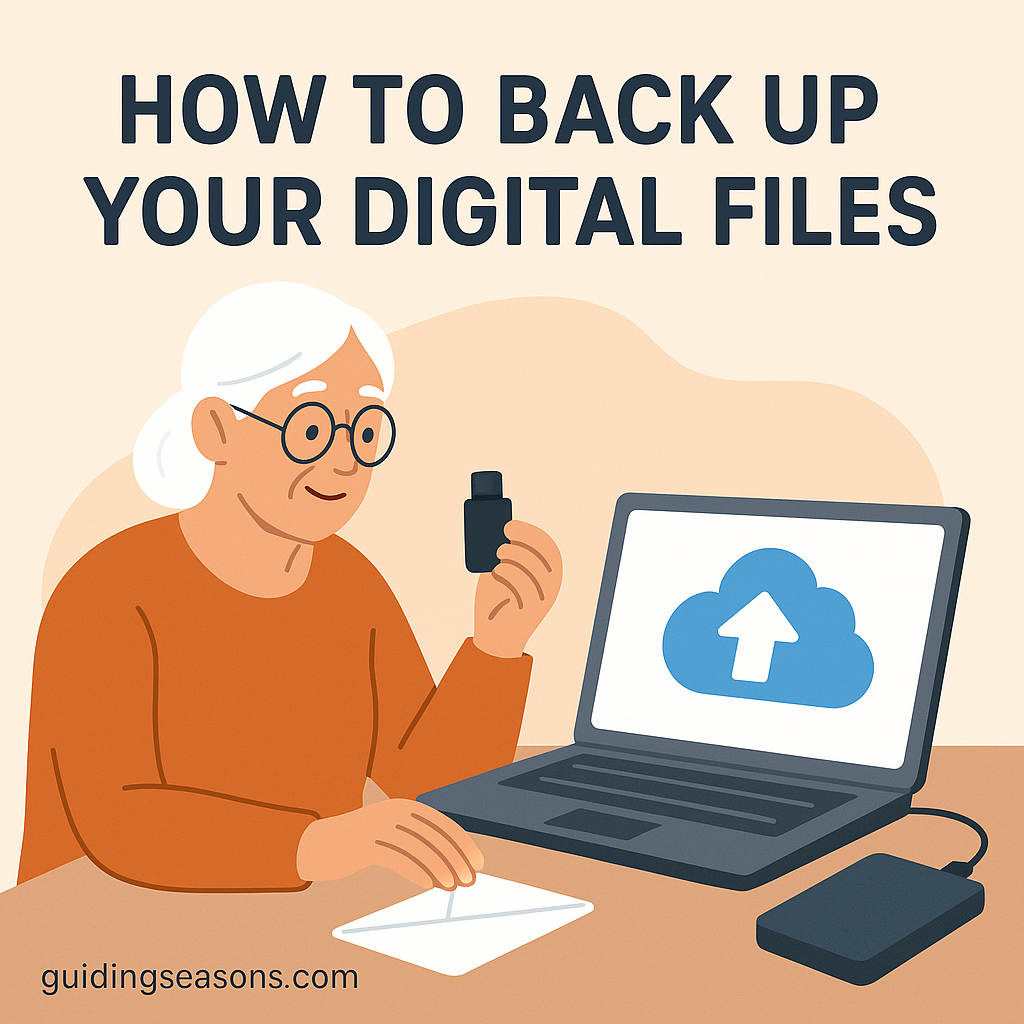
Cloud backup services can automatically store copies of certain files online.
External drives provide another option.
For especially important information, having more than one backup can provide additional protection.
See How to Back Up Your Digital Files for an explanation of the different approaches.
Simplify Your Digital Life
Technology is supposed to make life easier.
If your phone constantly interrupts you, your inbox contains thousands of unwanted messages, and you have dozens of unused apps, technology can create stress instead.
Every few months, consider doing a simple digital cleanup.
You might:
- Delete apps you no longer use
- Remove unnecessary notifications
- Unsubscribe from unwanted emails
- Organize important photos
- Delete duplicate files
- Review subscriptions
- Update important passwords
- Remove unused accounts
A simpler digital environment is usually easier to manage and secure.
Read How to Simplify Your Digital Life for a more complete cleanup strategy.
Don’t Buy Technology Just Because It’s New
Technology companies release new products constantly.
You do not need the newest smartphone, computer, smartwatch, or smart-home device simply because a new version exists.
Before buying something, ask:
- What problem will this solve?
- How often will I use it?
- Is it easy for me to operate?
- Does it require a monthly subscription?
- Will it work with the devices I already own?
- Can I get help if something goes wrong?
- Is there a simpler or less expensive option?
A device that performs three useful functions well may be more valuable than one offering 100 features you never use.
How to Learn New Technology Without Feeling Overwhelmed
The fastest way to become frustrated is trying to learn everything at once.
Instead, choose one specific task.
For example:
Day 1: Learn how to send a text message.
Day 2: Learn how to attach a photo.
Day 3: Learn how to make a video call.
Day 4: Learn how to add an appointment to your calendar.
Small successes build confidence.
You also do not need to memorize every step immediately.
Write down instructions if that helps.
Screenshots can also be useful for remembering where certain buttons are located.
Our guide on How to Learn New Technology Skills Confidently provides a gradual approach.
Ask for Help—But Stay Involved
Getting help from a family member, friend, community program, or technology professional can save time.
However, try not to hand over every technology task permanently.
If someone helps you set something up, ask them to explain what they are doing.
You might even write down the steps.
Over time, tasks that initially seemed intimidating often become routine.
When someone helps with sensitive accounts, be careful about sharing passwords or financial information unnecessarily.
Create a Simple Technology Routine
You do not need to think about technology constantly.
A few regular habits can keep things manageable.
Daily
Check important messages and reminders.
Weekly
Review email, upcoming appointments, and financial activity.
Monthly
Review subscriptions, delete unnecessary files, and check that important information is backed up.
Occasionally
Review privacy settings, passwords, software updates, and devices you no longer use.
Simple maintenance can prevent small digital problems from turning into bigger ones.
Common Technology Mistakes to Avoid
Technology becomes easier when you avoid a few common traps.
Trying to Learn Everything at Once
Choose one useful skill and practice it until it feels familiar.
Clicking Links Without Checking Them
Unexpected messages should always be treated carefully.
Reusing the Same Password Everywhere
A compromised password can put multiple accounts at risk.
Ignoring Software Updates Forever
Updates frequently include security fixes.
Buying Too Many Devices
More technology can create more complexity rather than convenience.
Keeping Every Notification Turned On
Constant alerts can make technology stressful and make genuinely important notifications easier to overlook.
Giving Up After One Bad Experience
Technology problems happen to everyone.
A confusing app or failed setup does not mean you cannot learn the technology.
A Simple Technology Starter Plan
If technology still feels overwhelming, begin with five areas.
Communication: Learn calling, texting, email, and one video-calling method.
Safety: Learn how to identify suspicious messages and block unwanted callers.
Organization: Set up a calendar and important reminders.
Navigation: Learn basic GPS and map functions.
Security: Use strong passwords, device locks, updates, and secure Wi-Fi.
Once those feel comfortable, explore banking, health tools, smart-home devices, entertainment, and other services.
There is no reason to rush.
Technology Should Support Independence, Not Create Dependence
Technology is most valuable when it gives you more control over everyday life.
A navigation app can help you reach unfamiliar destinations.
A video call can connect you with grandchildren hundreds of miles away.
An online banking app can save a trip to a branch.
A digital reminder can help you remember an appointment.
A smart light can make navigating your home at night more convenient.
These are practical improvements—not technology for technology’s sake.
The goal is to identify areas where technology removes an obstacle and then learn the simplest tool that solves that problem.
Build a Technology Setup That Works for You
There is no single ideal technology setup for every older adult.
Someone who travels frequently may depend heavily on smartphone navigation and travel apps.
Someone who spends more time at home may get more value from a tablet, video calling, smart lighting, and streaming entertainment.
Another person may primarily want technology for banking, healthcare, and communication.
Your needs should determine your technology—not the other way around.
Start with what improves your everyday life and ignore features you do not need.
Continue Building Your Technology Skills
Once you understand the basics, you can explore individual topics in more detail:
- How to Reduce Tech Frustration at Home
- How to Use Smartphones With Senior-Friendly Settings
- How to Use Online Banking Safely
- How to Back Up Your Digital Files
- How to Navigate the Internet With Confidence
- How to Use GPS Navigation on Your Phone
- How to Use Health Tracking Apps on Your Phone
- How to Choose Tech That Fits Your Needs
- How to Block Spam Calls and Messages
- How to Set Up a Secure Home Wi-Fi Network
- How to Avoid Online Scams Targeting Seniors
- How to Use Video Calling Apps as a Beginner
- How to Reduce Monthly Bills Using Smart Tech
- How to Stream TV and Movies Easily
- How to Set Up Smart Home Devices Easily
- How to Use Email Without Feeling Overwhelmed
- How to Learn New Technology Skills Confidently
- How to Use Voice Assistants at Home
- How to Simplify Your Digital Life
- How to Use Tablets for Reading and Browsing
- Beginner Guide to Social Media for Seniors
Final Thoughts
Technology does not need to dominate your life, and you do not need to understand every new device or application.
Focus on technology that solves practical problems.
Start small.
Make your devices easier to see and operate. Learn basic communication tools. Protect your accounts. Practice recognizing scams. Use calendars and reminders to stay organized. Explore navigation, health, financial, and smart-home tools when they provide a genuine benefit.
Most importantly, give yourself time to learn.
Technology becomes easier through repetition. Something that feels unfamiliar today may become completely routine after you have used it several times.
The goal is not to become an expert.
The goal is to use technology confidently enough that it works for you—helping you stay connected, informed, safe, organized, and independent throughout the years ahead.