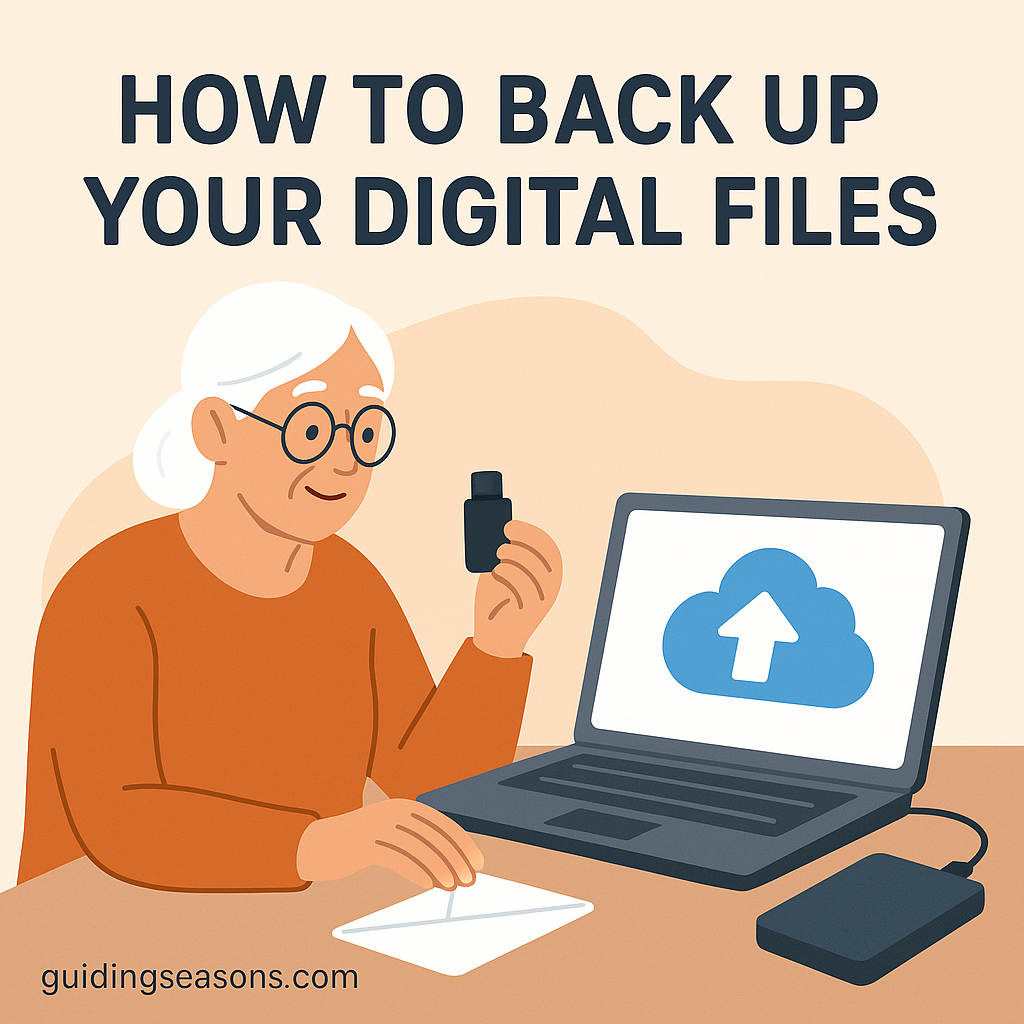
Our digital lives hold precious memories and important documents—photos, emails, passwords, medical records, financial information, and more. Losing them can be stressful, especially if a device breaks, gets lost, or stops working unexpectedly. That’s why backing up your digital files is one of the most valuable tech habits you can develop.
The good news is that backing up your files doesn’t have to be complicated. With a few simple steps, you can protect everything that matters most and enjoy greater peace of mind.
This guide walks you through some of the easiest and safest ways to back up your digital files.
Why Backing Up Your Files Matters
Backing up your files helps ensure you still have your information even if something goes wrong.
Backups can protect you from:
- Computer crashes
- Accidental deletion
- Lost or stolen devices
- Viruses or malware
- Damaged or aging hard drives
- Phone malfunctions
- Software glitches
If something happens to your device, having a recent backup can make recovering your important information much easier.
Understand the Two Main Types of Backups
A strong backup plan uses one or both of these methods:
1. Cloud Backups
Your files are saved online through services such as:
- Google Drive
- iCloud
- OneDrive
- Dropbox
Cloud storage can automatically save or synchronize your files and keeps a copy away from your physical device.
2. Physical Backups (External Devices)
This includes:
- External hard drives
- USB flash drives
These devices let you keep an additional copy of important files at home or another secure location.
Tip: For extra protection, consider using both methods—cloud storage plus an external drive—rather than relying on a single backup.
A useful approach is the 3-2-1 backup rule: keep 3 copies of important files, on 2 different types of storage, with 1 copy stored somewhere separate from your main device.
For example, your family photos might exist on your computer, on an external hard drive, and in secure cloud storage. If your computer fails, you still have two other copies.
Option 1: Back Up Your Files Using the Cloud
Cloud storage is one of the easiest ways to protect your files because much of the process can happen automatically once it’s set up.
iPhone Users: Use iCloud
Depending on your settings, iCloud can back up or synchronize information such as:
- Photos
- Contacts
- Messages
- Notes
- App data
- Device settings
On an iPhone, look under:
Settings → Your Name → iCloud → iCloud Backup
Apple occasionally changes menu names or locations with software updates, so your screen may look slightly different.
Android Users: Use Google Backup
Android devices can back up information associated with your Google Account, which may include:
- Photos and videos
- Contacts
- Messages
- App data
- Device settings
Look under your phone’s Settings for Google or Backup options. The exact steps can vary depending on the phone manufacturer and Android version.
Computer Users
Popular cloud-storage options include:
- Google Drive
- OneDrive
- iCloud
Depending on the service and your settings, files placed in designated folders can be synchronized automatically with your cloud account.
Why Cloud Backup Can Be Helpful for Seniors
- No external drive to connect each time
- Automatic options are available
- Files may be accessible from multiple devices
- Easy access when replacing a device
- Less risk of losing everything if a computer is damaged or stolen
Remember that cloud services still require good account security. Protect your account with a strong, unique password and two-factor authentication when available.
Option 2: Back Up Your Files With an External Drive
If you prefer something you can hold in your hand, an external hard drive or solid-state drive can be a simple and reliable backup method.
How to Use an External Drive
- Plug the drive into your computer’s USB port.
- Open your computer’s backup software or locate the drive.
- Select the files or folders you want to back up.
- Start the backup and allow it to finish before disconnecting the drive.
- Store the drive somewhere safe when you’re done.
Your computer may also offer an automatic backup option when an external drive is connected.
Windows Users
Windows includes built-in options for backing up or synchronizing files. Because Microsoft occasionally changes these tools and settings between versions of Windows, search Settings for “Backup” to see the options available on your computer.
Mac Users: Use Time Machine
Apple’s Time Machine can automatically back up files to a compatible external storage device.
Look under:
System Settings → General → Time Machine
From there, you can add a backup disk and configure your backup.
Benefits of External Drives
- Usually a one-time purchase
- Large storage capacity
- No internet connection required
- You control where the backup is stored
- Useful as a second copy in addition to cloud storage
When you’re not using the drive, consider disconnecting it from your computer and storing it safely.
Option 3: Back Up Only What Matters Most
If you don’t want to back up your entire device, you can start by protecting your most important files.
Important files to save may include:
- Family photos
- Videos
- Important documents
- Medical records
- Tax files
- Personal journals or notes
- Contact lists
Be particularly careful with files containing financial, medical, or other sensitive information. If you keep these files in cloud storage or on a portable drive, make sure the account or device is appropriately secured.
For passwords, consider using a reputable password manager rather than keeping an unprotected document containing all of your passwords.
How Often Should You Back Up?
The best backup is one that stays reasonably up to date.
A simple schedule might be:
- Cloud backups: Automatically, when supported
- External drive backups: Weekly or monthly
- Important photos/documents: After major events, trips, or updates
Think about how much information you would be comfortable losing. If losing a month’s worth of photos or documents would be upsetting, back them up more frequently than once a month.
Keep Your Backups Safe
Even backups need protection.
Tips to stay secure:
- Use strong, unique passwords
- Keep external drives in a safe place
- Enable two-factor authentication on cloud accounts
- Keep devices and software updated
- Never share passwords or verification codes with unexpected callers
- Be cautious of emails or messages claiming there is a problem with your cloud-storage account
A backup is valuable because it contains copies of your important information, which means it deserves the same protection as your computer or phone.
The AARP Fraud Watch Network provides additional information about protecting yourself from scams, phishing attempts, and other forms of fraud that may put personal information and online accounts at risk.
What to Do If Your Device Stops Working
If your device fails and you have a recent backup, recovery is usually much easier.
- Cloud backup: Sign in to the appropriate account on your replacement device and follow the service’s instructions for restoring or downloading your information.
- External backup: Connect your backup drive to a working computer and use your backup software or copy the files you need.
Don’t erase, discard, or attempt major repairs on a failed device until you’re confident that your important information has been backed up or recovered.
If you’re unsure how to proceed, ask a trusted person or qualified technician for help.
Make Backups Part of Your Routine
Once your backup system is set up, keeping your files safe becomes much simpler.
Create a routine such as:
- Checking your phone’s automatic backup once a month
- Backing up your computer to an external drive every Sunday
- Uploading new photos after family events
- Checking your cloud storage periodically
- Occasionally confirming that important files can actually be opened from your backup
That last step is important. A backup is most useful when you know the files are actually there and can be recovered.
For additional guidance on using technology safely and confidently, AARP’s technology resources cover smartphones, computers, online security, and other common digital topics.
Final Thoughts
Backing up your digital files is one of the most important technology habits for seniors—and it doesn’t have to be difficult. With cloud storage, an external drive, or a combination of both, you can greatly reduce the risk of losing important memories, documents, and personal information.
If you’re just getting started, focus first on the files you couldn’t easily replace, such as family photos and important personal documents. Then consider setting up automatic backups so protecting your information requires less effort over time.
Remember the 3-2-1 approach: multiple copies, different storage methods, and at least one copy separate from your primary device.
A little preparation today can make recovering from a lost, damaged, or malfunctioning device much easier tomorrow.